
A sign-in often involves more than a password: a code in another tab, a passkey in another browser, or a new account to save on your phone. Our latest updates make those steps easier to get through.
Authier extension 1.2.13 adds Gmail verification codes and encrypted browser passkeys, alongside improvements to autofill. Authier for Android 0.1.5 opens the fingerprint prompt automatically and lets you create, save, and fill passwords from supported login forms. Here is what changed since extension 1.2.12 and Android 0.1.4.
Your email verification code, one click away
Keep Gmail open in another tab. When Authier finds a verification code in an opened message or an unread inbox preview, a red dot appears on the extension icon. Open the popup to see who sent it and a masked code, such as 213***. Click the code to copy it and reveal the full value.
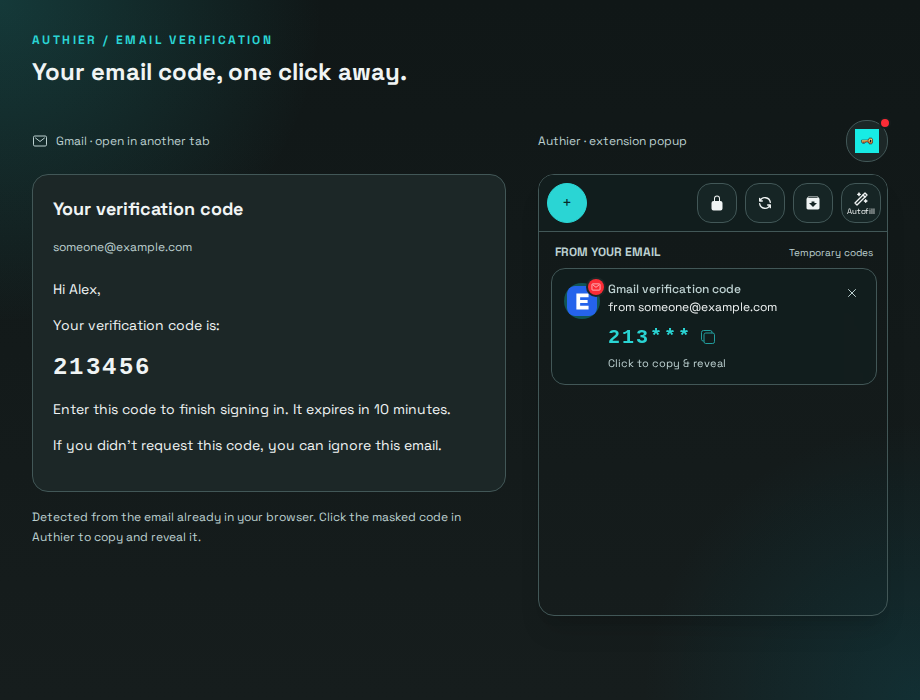
The sender’s domain favicon helps you recognize the message. A small red mail badge marks a new code; if the favicon cannot load, a mail icon takes its place. Clicking the icon brings the source Gmail tab and its window forward, while clicking the code copies it. They are separate actions.
Emails format codes in many ways. Authier converts the rendered message to plain text and looks for verification language around six-to-eight-character codes. It handles characters split across HTML spans, table cells, spaces, and lines, including codes containing letters.
Detection reads content Gmail has already rendered; it does not fetch your mailbox. If the inbox preview does not contain the code, open the message. Codes stay in browser session storage and disappear after ten minutes; the service that sent a code may expire it sooner. Gmail is the first supported email provider. After updating, reload existing Gmail tabs to start detection.
Browser passkeys that travel with your vault
You can now create and use passkeys on compatible websites through the extension. Authier stores them encrypted in your vault and asks you to approve registration and sign-in. The passkey’s detail view shows its website and account so you can tell your saved passkeys apart.
Install Authier in another supported browser, connect the same vault, and sync to use the passkey there. Requests Authier does not support fall back to the browser’s own authenticator. Android preserves these encrypted records during sync, but creating or signing in with passkeys on Android is not part of this release.
Autofill that understands more forms
The extension better distinguishes sign-in, registration, and password-change forms, helping it offer the password generator where you need a new password. When local rules are uncertain, a model-assisted classification service can analyze a limited form snapshot. The snapshot omits input values, hidden controls, and scripts; it includes field descriptions and nearby form text. Results are checked against the current form before use.
Authenticator autofill also handles more split-code inputs and forms that process pasted codes asynchronously. Website matching now checks hostname boundaries, preventing a similarly named unrelated domain from matching a saved login. And when you pause autofill for a domain, that choice persists across tabs and browser restarts until you turn it back on.
Android: open, authenticate, continue
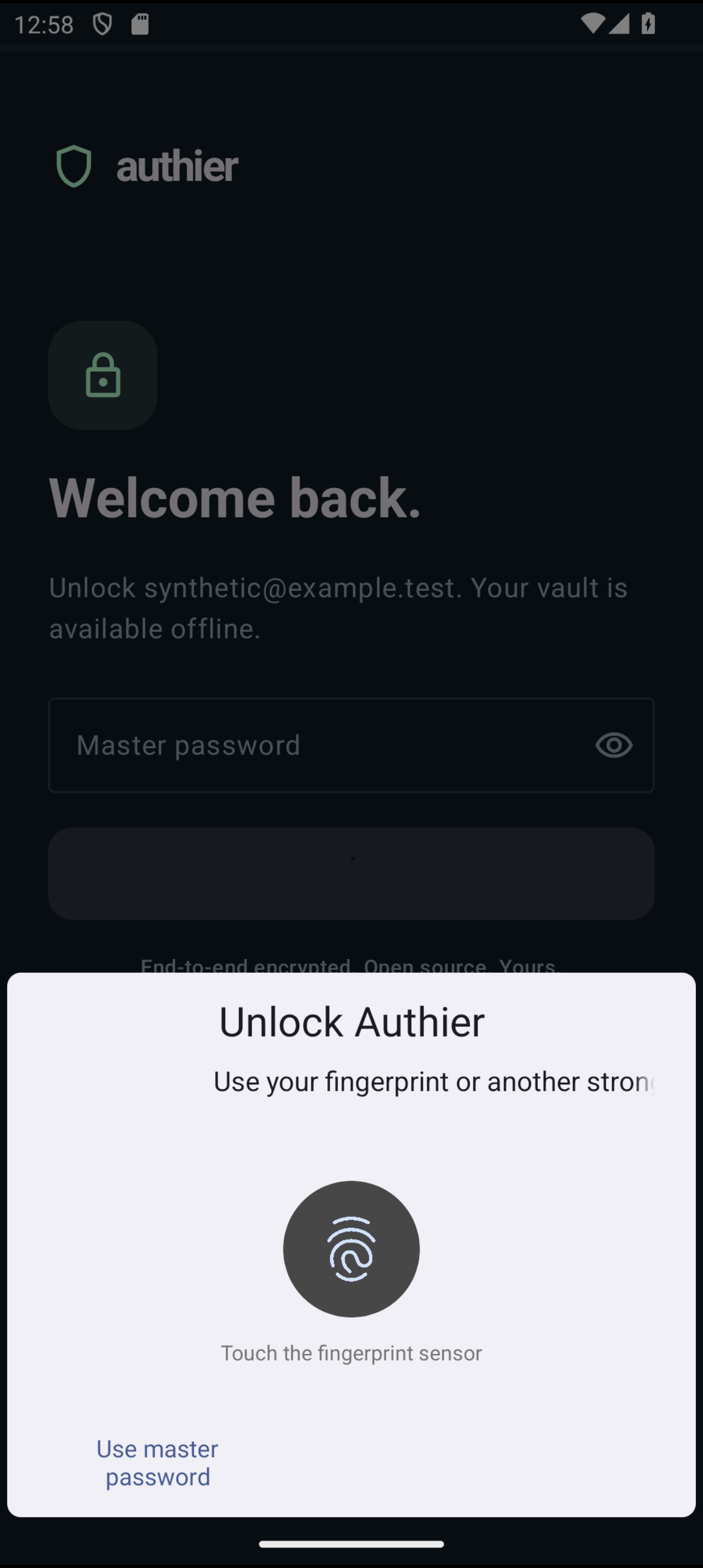
With fingerprint unlock enabled, opening a locked vault now starts Android’s biometric prompt automatically. Authier first checks whether your chosen timed session is still valid, so you do not get an extra prompt when the vault can already open.
Dismiss the prompt or choose Use master password to type your password instead. Rotating the phone does not immediately bring back a prompt you just dismissed, and you can tap Unlock with fingerprint whenever you want to retry.
Create a password from Android Autofill
Choose Create a strong password with Authier from Android’s autofill menu on a supported form. Review the username and generated password, generate another if you like, then tap Save and fill. Authier saves a new encrypted login on your phone before returning the values to the form, and queues it for sync.
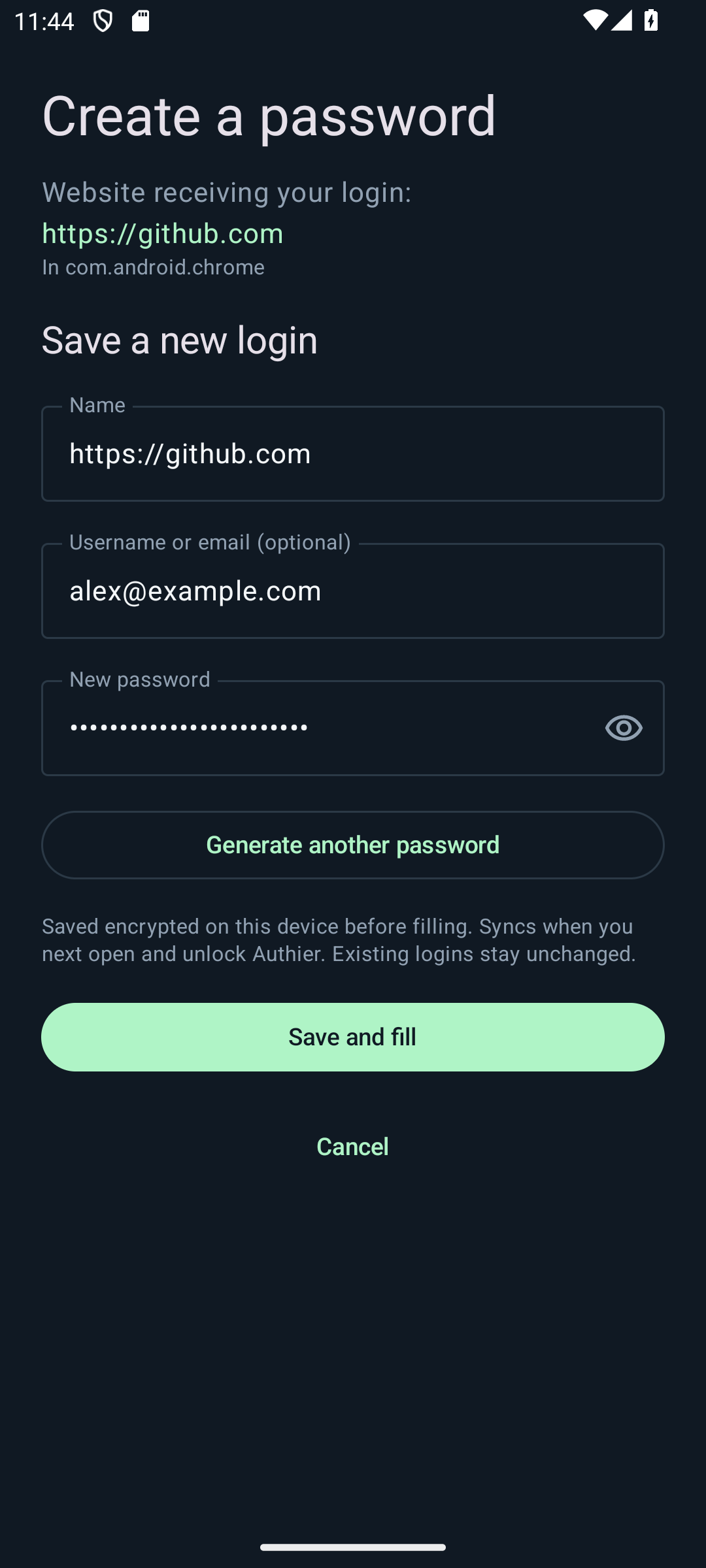
Native Android screenshots use synthetic test accounts.
Explicit new-password and confirmation fields receive the same generated value, while current-password fields stay unchanged. This creates a separate saved login, so it does not overwrite an existing vault entry. Canceling leaves both the form and vault untouched. You still submit the website’s form yourself.
Android Autofill now also supports HTTPS forms in your system-selected default browser, and embedded web forms whose website authorizes the app. Saved web logins must match the exact website origin. Browser autofill needs Android 9 or newer and fields exposed through Android Autofill; native app forms remain supported on Android 8.
Get the updates
The release tags are v1.2.13-extension and v0.1.5-android. Builds and store submissions run after tagging, so download and store availability may follow later. The browser download page links to Chrome, Firefox, and Edge.
On Android, use Obtainium or the signed APK once the new build is available. Update the existing installation in place to keep your local vault. Obtainium can check for subsequent releases for you.
Want the full changes? Browse the extension comparison and Android comparison, or tell us about a sign-in flow that still needs work.