
Your password manager should be ready when you need it. Open a login form, find your password, switch back to the other app, grab a verification code. That ordinary sequence should not mean typing your master password over and over.
The new Authier for Android brings your passwords and authenticator codes to a native app built for your phone. It supports offline vault access, Android Autofill, trusted-device approval, and fingerprint unlock. You can install the signed Android 0.1.3 release today on Android 8 or newer.
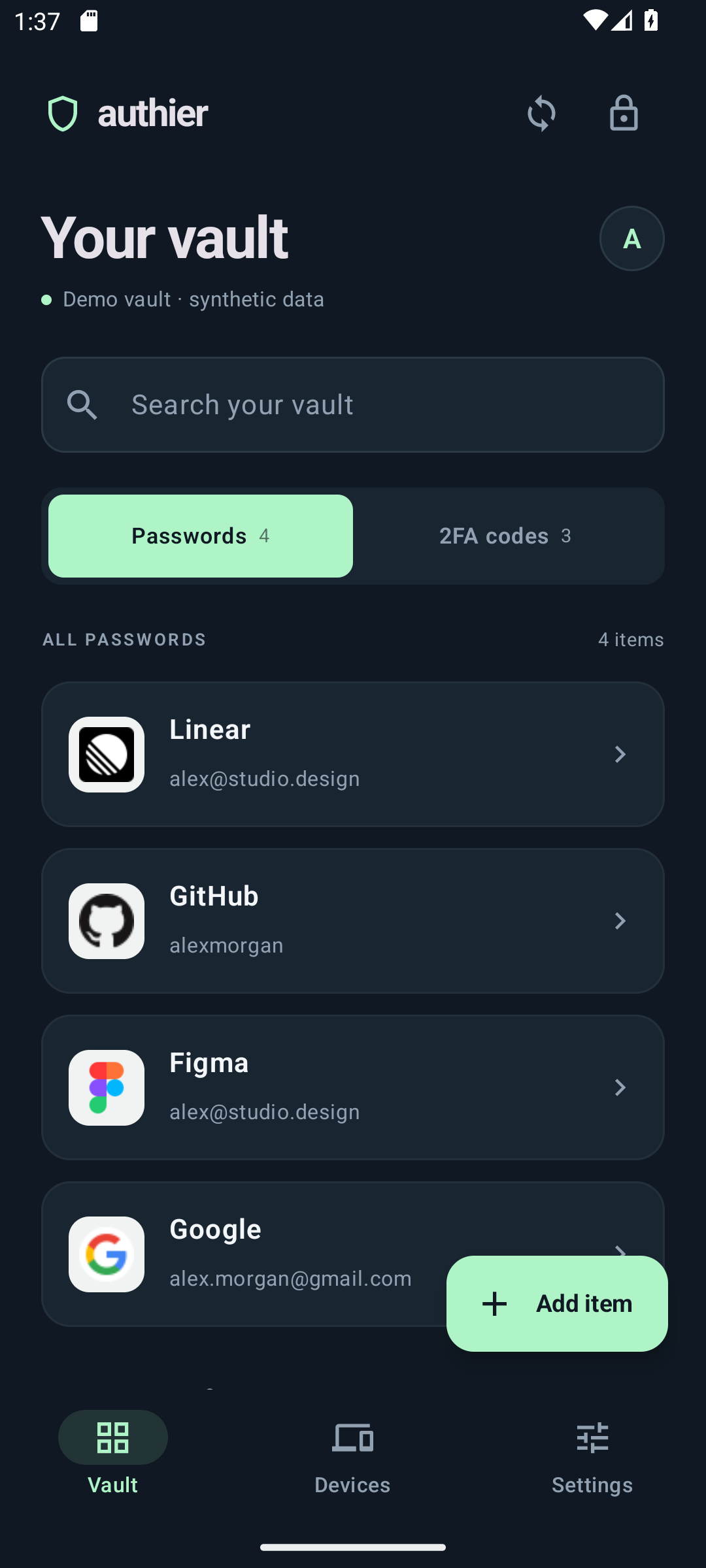
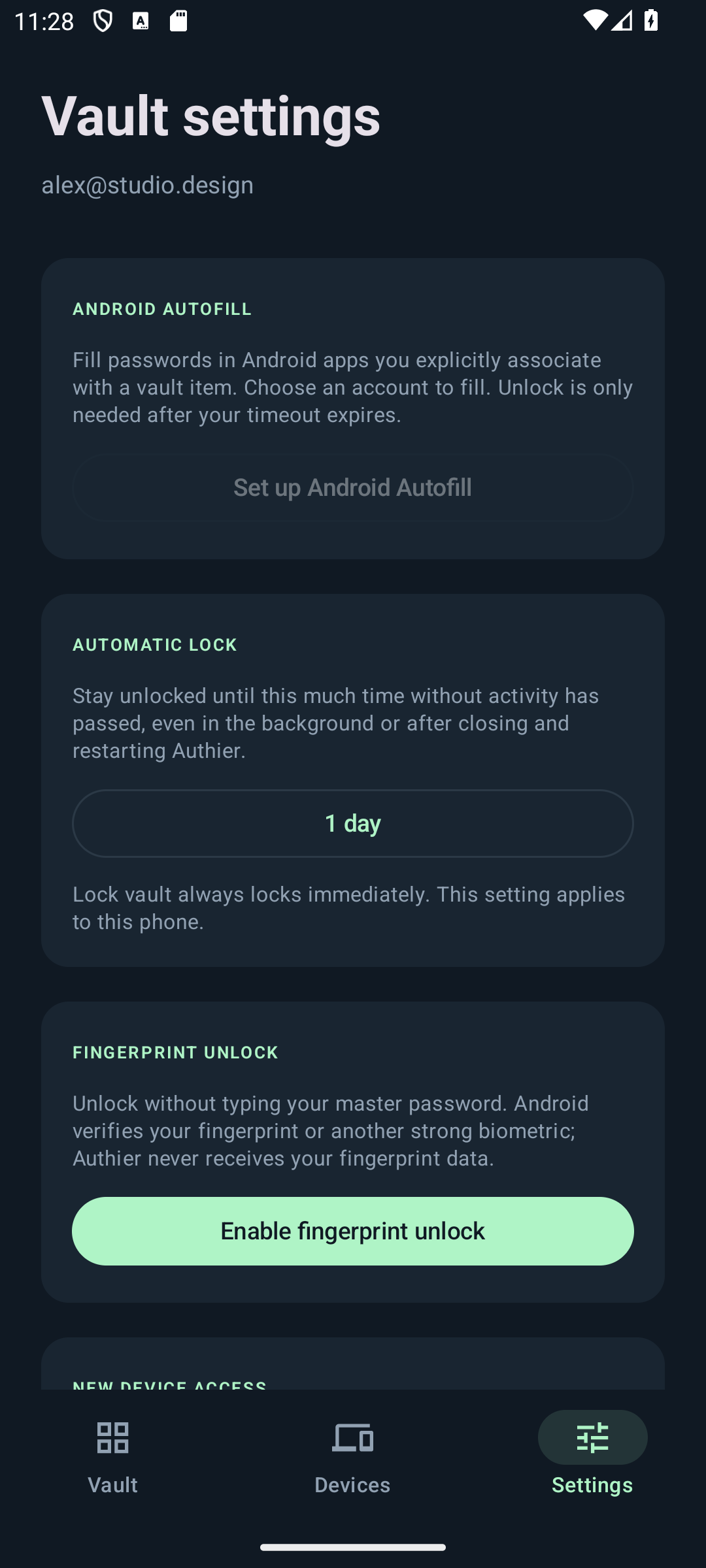
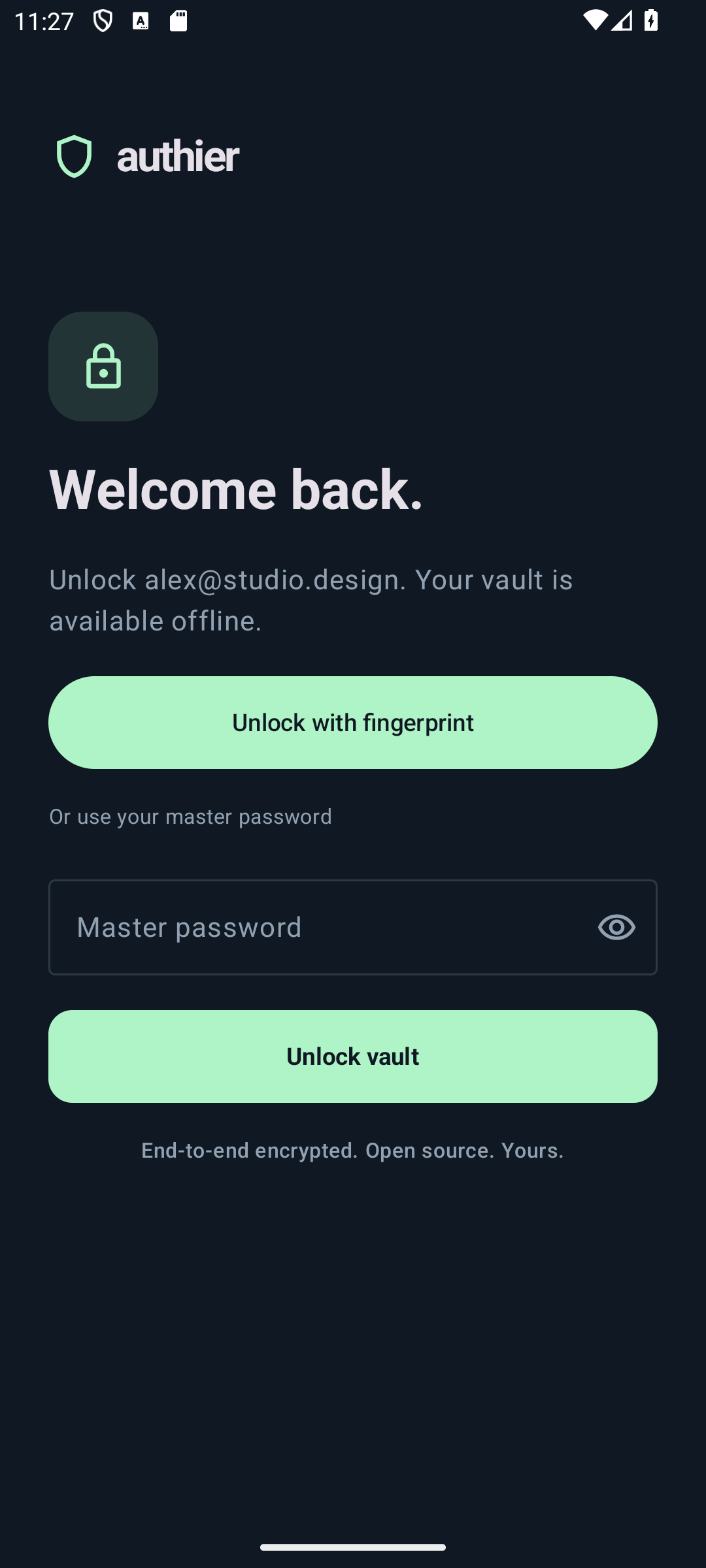
Screenshots show the native app with synthetic demo accounts.
A lock timer that does what you choose
Set the timeout to 15 minutes, leave Authier to use another app, and come back: your vault stays unlocked while that inactivity window is still open. Closing the app, force-stopping it, or restarting your phone does not reset your choice or force an early vault lock.
In Settings → Automatic lock, choose 1, 5, 15, or 30 minutes; 1, 4, 8, or 12 hours; or a full day. The choice saves on your phone and works offline. Activity in the app renews the timer; reopening it by itself does not. Once the selected period without activity has passed, the vault locks.
Prefer to lock whenever you leave? That option is still there. You can also tap Lock vault at any time to lock immediately, regardless of the timeout.
Unlock with your fingerprint
After unlocking your vault, open Settings → Fingerprint unlock and enable it. Android asks you to confirm with an enrolled fingerprint or another supported strong biometric. If you have not registered one yet, Authier takes you to Android’s enrollment settings; return to the app afterward to finish enabling the feature.
The next time your vault locks, tap Unlock with fingerprint. Your master password remains available as a fallback. Android performs the biometric check—Authier never receives or stores your fingerprint data. Changing the fingerprints registered on your phone requires setting up Authier’s biometric unlock again with your master password.
Passwords and codes, even offline
Search your saved logins, create and edit passwords, generate a new password, and copy a verification code from the authenticator tab. Once your vault is on the phone, you can unlock and use it without an internet connection.
Edits made offline stay encrypted on the device and sync when you reconnect and sync the vault. If another device changed the same item, Authier lets you review the conflict and preserve the value you need before discarding a local change. Your phone also joins the same trusted-device approval flow as the browser extension.
Fill a login without copying it around
Enable Android Autofill in Authier’s settings. In a supported native app’s login form, choose a saved account and confirm Use login and fill. Authier remembers the app association so linked logins appear first next time.
Autofill uses the same timed unlock session. While the session is valid, you can go straight to choosing an account. After it expires, unlock with your fingerprint or master password. You still choose which login to fill. This release supports native app forms; embedded browser forms and Android passkey authentication are not supported yet.
Native Android, the same encrypted vault
We built this app with Kotlin and Jetpack Compose and retired the old React Native mobile project. The new client uses Authier’s existing encrypted vault format, so your passwords and codes can travel between your browser and phone.
Your master password and decrypted vault items are not saved to disk. To make timed and fingerprint unlock possible, the app saves an encrypted copy of the vault key protected by Android Keystore. Fingerprint unlock uses a separate key that requires biometric authentication. Manual locking removes the saved timed session, and signing out removes both saved unlock methods. Read more about the design on our security page or inspect the Android source.
Get Authier on your phone
Head to the Android download page and select Set up with Obtainium. Install Obtainium if you need it, open the setup link again, and confirm the Authier configuration. Obtainium installs Authier from our signed GitHub releases and checks for future updates. A manual APK download is available on the same page.
Already using the native Android app? Update it in place so your local vault stays intact. Then pick a lock timeout that suits your day and turn on fingerprint unlock. Your vault is ready to come with you.
Try it today: get Authier for Android, or tell us what would make it work better for you.