
A code arrives on your phone while you are signing in on your laptop. A password form asks you to enter the same new password twice. Your connection drops just when you need a saved login. These are the moments we have been working on since our September 16 update.
This roundup covers changes through October 6: extension releases 1.2.14–1.2.16, Authier for Android 0.1.6, and two follow-up improvements coming in the next builds. Alongside SMS codes and inline filling, you can now choose how to recover a lost master device and receive device sign-in notifications on Android.
SMS codes from your phone, in your browser
The extension now brings text-message verification codes into the same popup as your Gmail codes. Email appears under From your email; SMS appears under From your phone. A red dot on the toolbar tells you when a new code is available, including when the popup is closed. Open your unlocked vault, then click a masked code to copy and reveal it.
There are two ways to bring SMS codes into Authier:
- Authier for Android: in Settings, enable Send SMS codes while unlocked and grant Android’s SMS permission. Incoming texts are checked on the phone. Authier encrypts the extracted code and sender with your vault key before sending them to your browser; the message body stays on the phone.
- Google Messages for Web: pair it with your phone and keep it open in a browser tab. Authier reads codes from rendered unread conversation previews and the newest received message in the open conversation. It skips earlier messages in the thread.
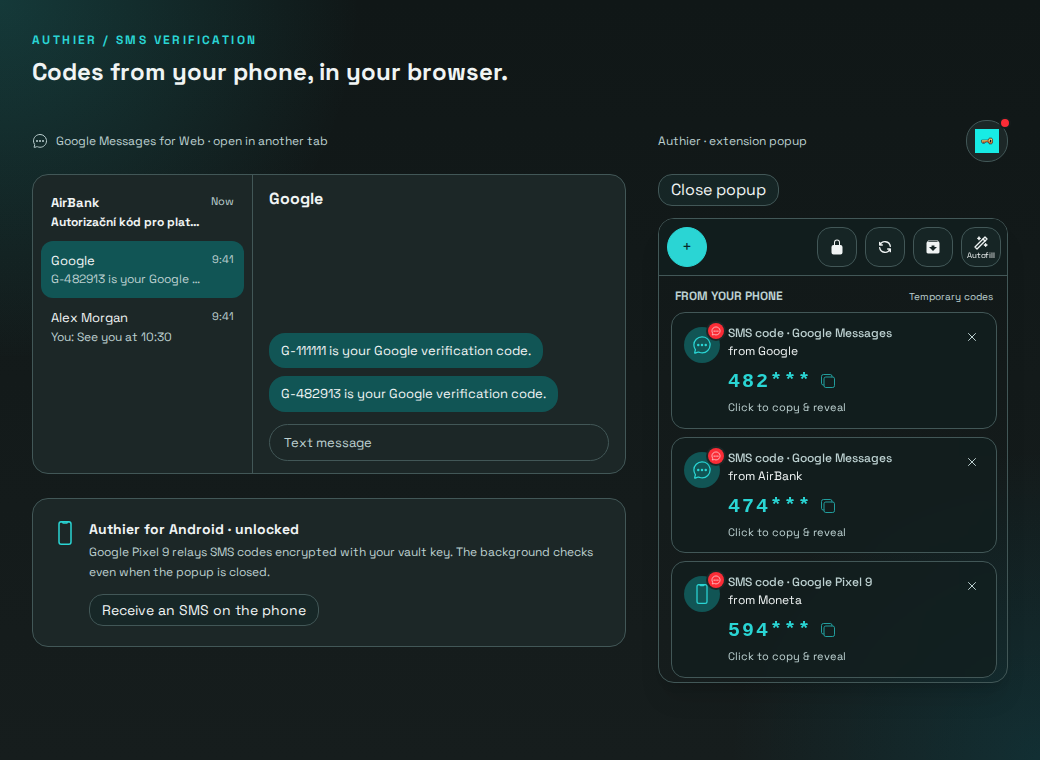
Phone relay needs Authier signed in to the same vault on both devices. A locked phone vault sends nothing, and the browser needs an unlocked vault to decrypt relayed codes. Choose a timed unlock on Android if you want relay to work while Authier is in the background; locking as soon as you leave the app stops it. Background checks can be delayed by browser sleep, so delivery is not guaranteed to be instant.
SMS detection handles four-to-eight-character codes, including common localized code labels, while filtering amounts, card numbers, and other unrelated numbers. Temporary codes expire from Authier after ten minutes; the sender may expire them sooner. They stay separate from your saved vault items. A phone-relayed code identifies its sending device, while a web code’s source icon opens its Gmail or Messages tab without copying it.
Fill verification codes where you need them
On supported HTTPS pages, the Authier logo now appears beside a detected verification field or a group of digit boxes. Click it, choose a masked suggestion, and Authier fills the code directly into the form. This works with Gmail, Google Messages, and Android-relayed codes, including forms that appear after the page first loads.
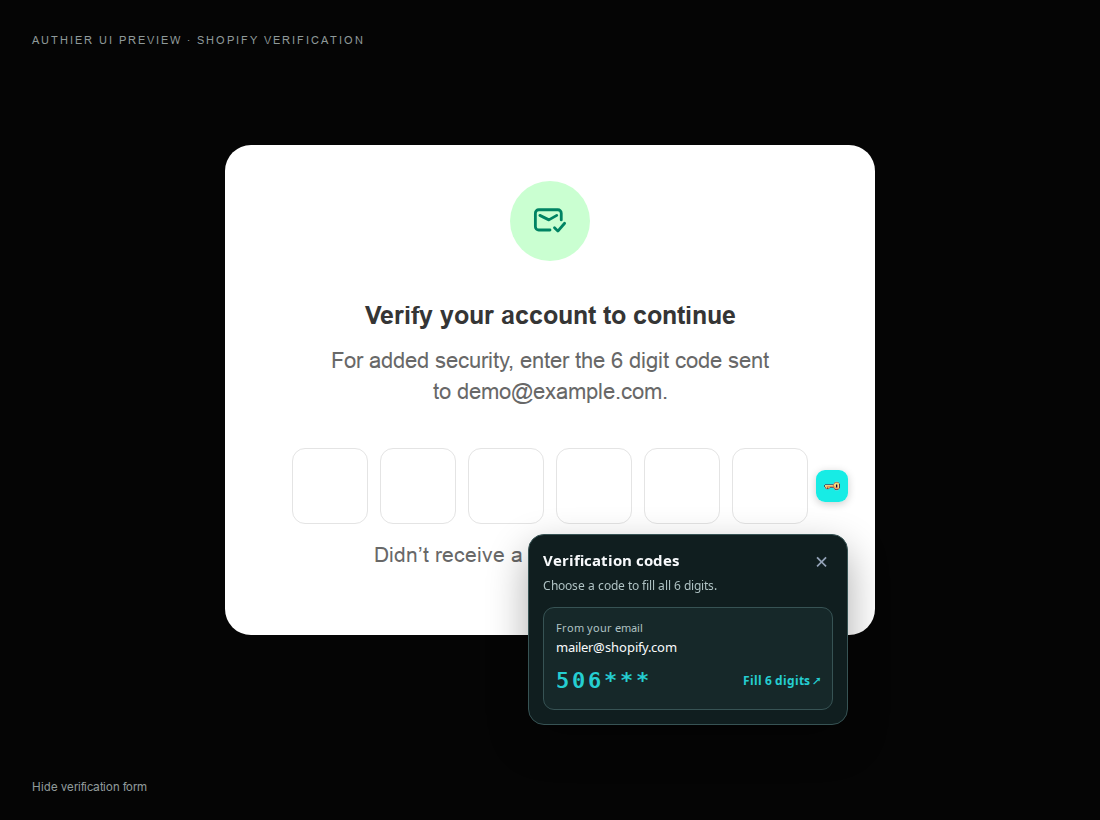
Your vault must be unlocked and autofill enabled. Email suggestions match the sender’s domain to the website, while SMS codes remain explicit choices: a phone number or sender name cannot reliably identify a website. Only codes that fit the field’s length and numeric requirements are offered. Selecting one replaces partially entered digits too; you still complete the website’s sign-in flow yourself.
Choose your plan for a lost master device
New accounts now choose a recovery policy during signup in the extension, web vault, and Android app. The default requires one approval from another device and a 48-hour wait. You can choose zero to ten device approvals and a waiting period from five minutes to 90 days, plus additional email addresses for recovery updates.
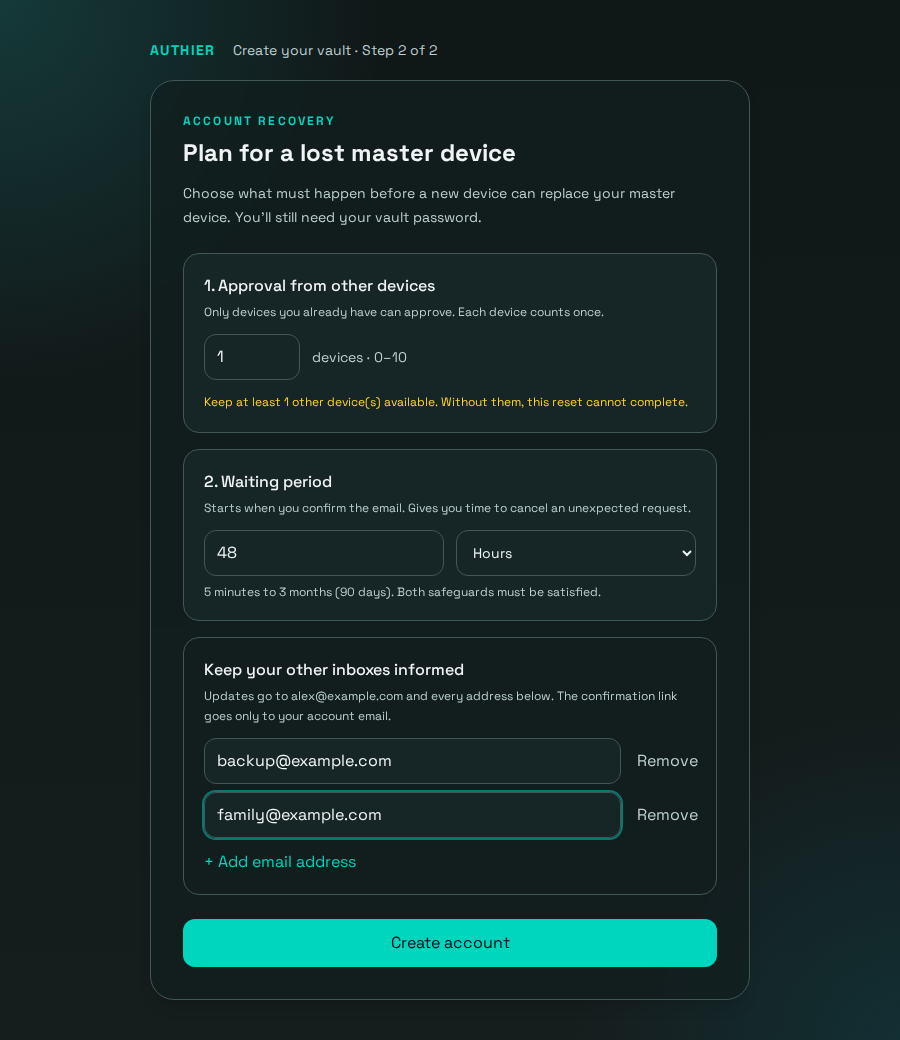
If you lose your master device, request a reset from the login approval screen. Confirm the link sent to your account email within 24 hours; that confirmation starts the waiting period. Eligible devices you already had can approve through Devices, and signed-in devices can cancel an unexpected request. The progress display shows the approval count and when the wait ends. Both conditions must be met before the lost master is removed.
If you need recovery without another available device, choose zero approvals in advance. Your vault password is still required. This recovers device access, not a forgotten password. Extra notification addresses receive updates; only your account email receives the confirmation link.
The master device can change the policy in the extension’s settings or the web vault’s Security page. Pending requests keep the rules they started with. Existing accounts retain their email-based recovery policy rather than silently gaining a new approval requirement. Our trusted-device guide explains how device access fits into Authier’s security model.
Android notifications for device sign-ins
Authier for Android now receives push notifications when another device signs in or requests approval, according to your device access policy. Tap the notification to open Devices and review the request. If the vault is locked, unlock it first; the app then takes you to the device list.
Android 13 and newer ask for notification permission. You can revisit it through Settings → Sign-in notifications → Notification settings. Notification delivery depends on the phone’s notification settings and push service. The extension’s device-policy chooser also now handles selection, saving errors, keyboard focus, and scrolling on small screens more clearly.
Authenticator labels that identify the account
Scanning a TOTP QR code in the extension now saves an account-first label such as alex@example.com | Microsoft. That makes work and personal codes easier to distinguish when they belong to the same provider. The account email comes from the QR code when available, then the page or a recently entered email in the current browser session. If none is available, Authier asks you to enter it before saving.
When that extra step is needed, the form separates account email and provider and previews the saved label. Regular and private browsing keep their session email fallbacks separate. These labels apply to newly saved codes; existing authenticator entries keep their names.
Fewer interruptions from forms and connections
- Generated passwords fill confirmation fields. On supported signup and password-change forms, choosing a generated password also fills its repeat field with the same value. Current-password fields stay unchanged, and detection reaches more forms built with web components.
- Autofill respects the account you selected. A username already entered on the page takes priority, including Google’s separate password step. Ambiguous password-only forms offer an account picker instead of guessing. Android Autofill also tolerates missing field hints that could previously interrupt filling.
- Saved items remain available through connection failures. The extension shows locally cached items while checking the server, keeps them through failed session renewal, and displays an offline notice when it cannot connect. You can search, reveal passwords, and switch views; retry sync when the connection returns. Adding items still needs a connection when the service cannot be reached.
- Connecting a browser populates the vault more reliably. The initial sync continues in the background when the popup closes, and received items appear in an already open popup without a manual refresh.
- Large vaults use the available space. Card and table views fill tall windows, recover after a search finds no matches, and resize correctly in Firefox as well as Chromium.
Coming in the next builds
Two more improvements landed after the October 4 release tags and will arrive in subsequent builds:
- Dismiss a section’s temporary codes together. Each email or SMS section shows its count and a Dismiss all action. It clears the displayed codes while preserving a code that arrived just as you clicked.
- See whether Android Autofill is set up. Settings shows whether Authier is the selected provider and offers the appropriate setup or settings button. The status refreshes when you return from Android settings, including after canceling or switching providers.
Get the updates
The latest published GitHub releases are v1.2.16-extension and v0.1.6-android. Browser store rollout can follow release publication; use the browser download page for Chrome, Firefox, and Edge. Reload existing Gmail and Google Messages tabs after updating so the new detection scripts can run.
On Android, update through Obtainium or the signed APK. Update your existing installation in place to keep the local vault. For the complete release window, browse the extension changes and Android changes.